OnLink imports ManageEngine Endpoint Central computer inventory into Jira Service Management Assets through the Endpoint Central REST API: an auth token from the authentication endpoint, the scancomputers inventory call, and a mapping keyed on resource_id.
This guide covers the API and authentication, why endpoint data belongs in Assets, the five-step OnLink setup, and a full field-mapping reference.
Overview of ManageEngine Endpoint Central and its inventory API
ManageEngine Endpoint Central (formerly Desktop Central) is a unified endpoint management platform that handles patch management, software deployment, remote control, asset tracking, and more across Windows, macOS, and Linux devices. Under the hood, it maintains a rich inventory of every managed endpoint — hardware specs, OS details, network configuration, installed software, and live status.
Endpoint Central exposes this inventory through a well-documented REST API. The key endpoint for computer inventory data is the Inventory Scan Computers API:
GET /api/1.4/inventory/scancomputers
Authentication
Before making any API calls, you authenticate by posting credentials to the authentication endpoint:
The response returns an auth_data token that you include as an Authorization header on all subsequent requests.
Why import Endpoint Central computer data into JSM Assets
You might wonder: if Endpoint Central already tracks all this data, why duplicate it in Assets? The answer isn’t about duplication, it’s about context. Assets sits at the center of your ITSM workflows in Jira Service Management, and putting endpoint data there unlocks capabilities that Endpoint Central alone cannot provide.
Single pane of glass for service desk ag
Richer impact analysis for changes
Automated workflows
Compliance and reporting
How to set up the integration with OnLink
OnLink is an Atlassian Marketplace app that connects external data sources — including ManageEngine Endpoint Central — to JSM Assets. It handles authentication, data retrieval, field mapping, and scheduled synchronization so you don’t need to build or maintain custom scripts.
Step 1: Configure the connection
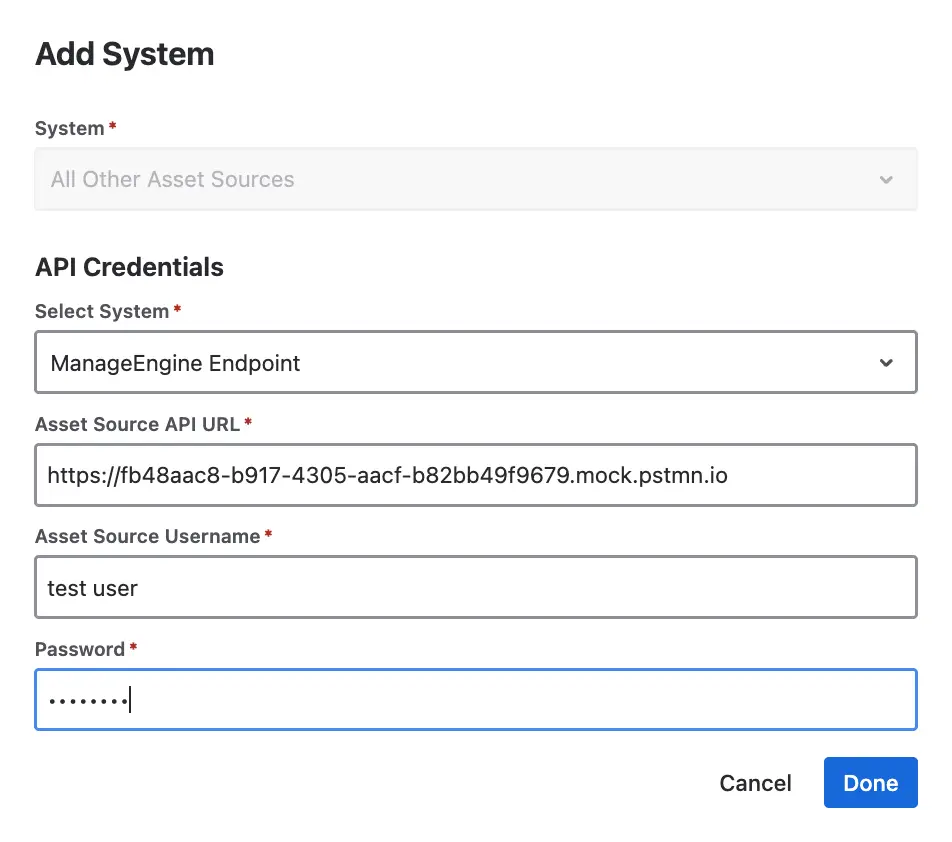
In OnLink, choose “All Other Asset Sources” and select ManageEngine Endpoint Central to add a new connection. You’ll need:
A username and password for API authentication (OnLink uses the “Generating Authentication Key using API tool” mechanism described in the Endpoint Central API docs)
OnLink: API credentials for connecting to ManageEngine Endpoint Central.
Step 2: Set up the asset mapping configuration
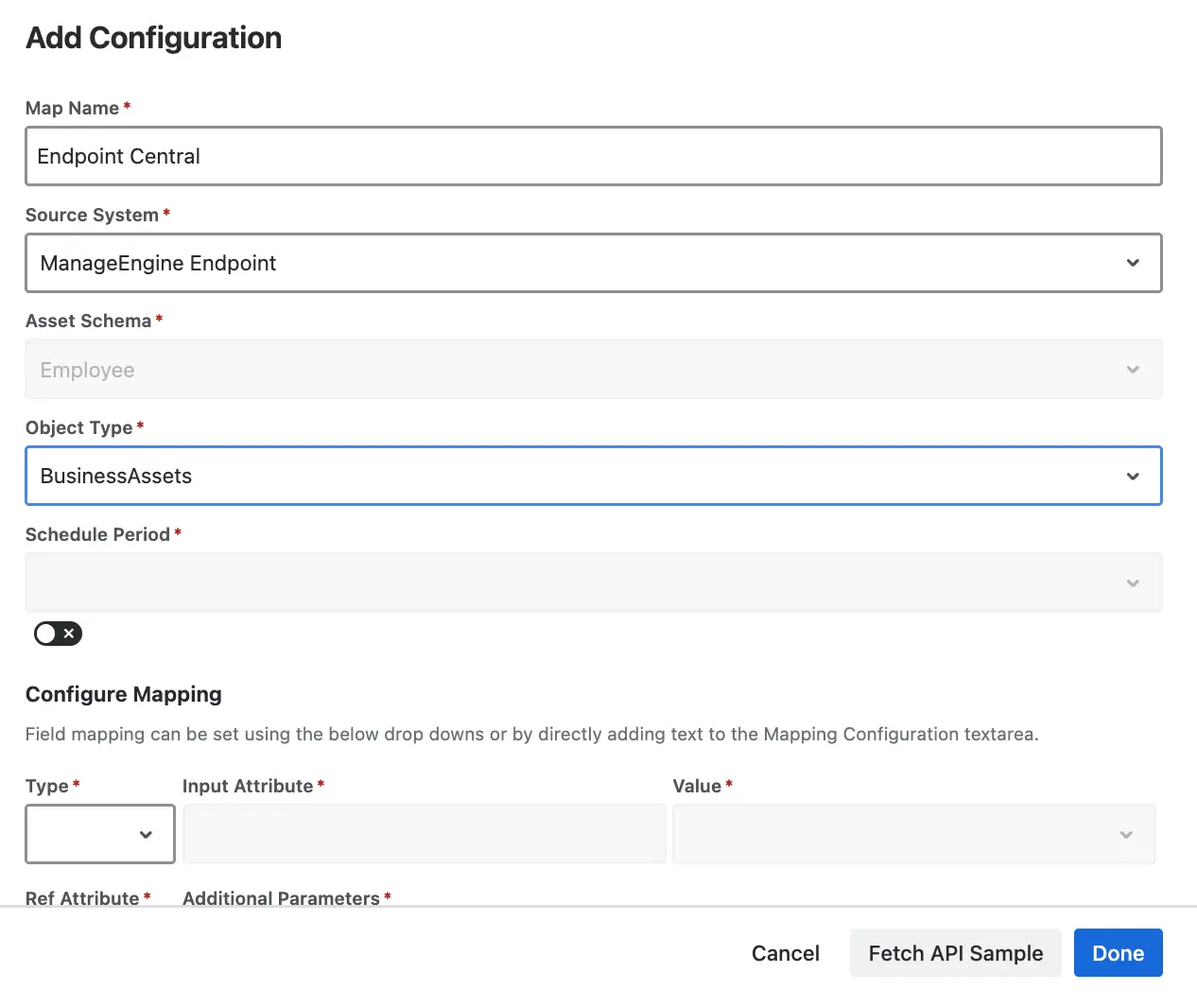
Once the connection is established, configure the API in your Asset Mapping Configuration within OnLink. This is where you tell OnLink which Endpoint Central API endpoint to call and how to map the response fields to your JSM Assets object schema.
Step 3: Define your field mapping
OnLink uses a straightforward mapping syntax. Here’s an example configuration:
					key:resource_id=id
map:os_version=OS Version
map:os_platform=OS Platform
map:status_label=Status
How to read this:
Syntax
Description
key:resource_id=id
Designates resource_id as the unique identifier. The key keyword tells OnLink to use this field to match and update existing records rather than create duplicates. id is the target text attribute in Assets.
map:os_version=OS Version
Maps the os_version field from Endpoint Central to the "OS Version" text attribute in your Assets schema.
map:os_platform=OS Platform
Maps os_platform to the "OS Platform" attribute in Assets.
map:status_label=Status
Maps the device status label to a "Status" attribute.
You can extend this mapping to include any field returned by the API — computer name, IP address, MAC address, domain, and more.
OnLink: import configuration for ManageEngine Endpoint Central.
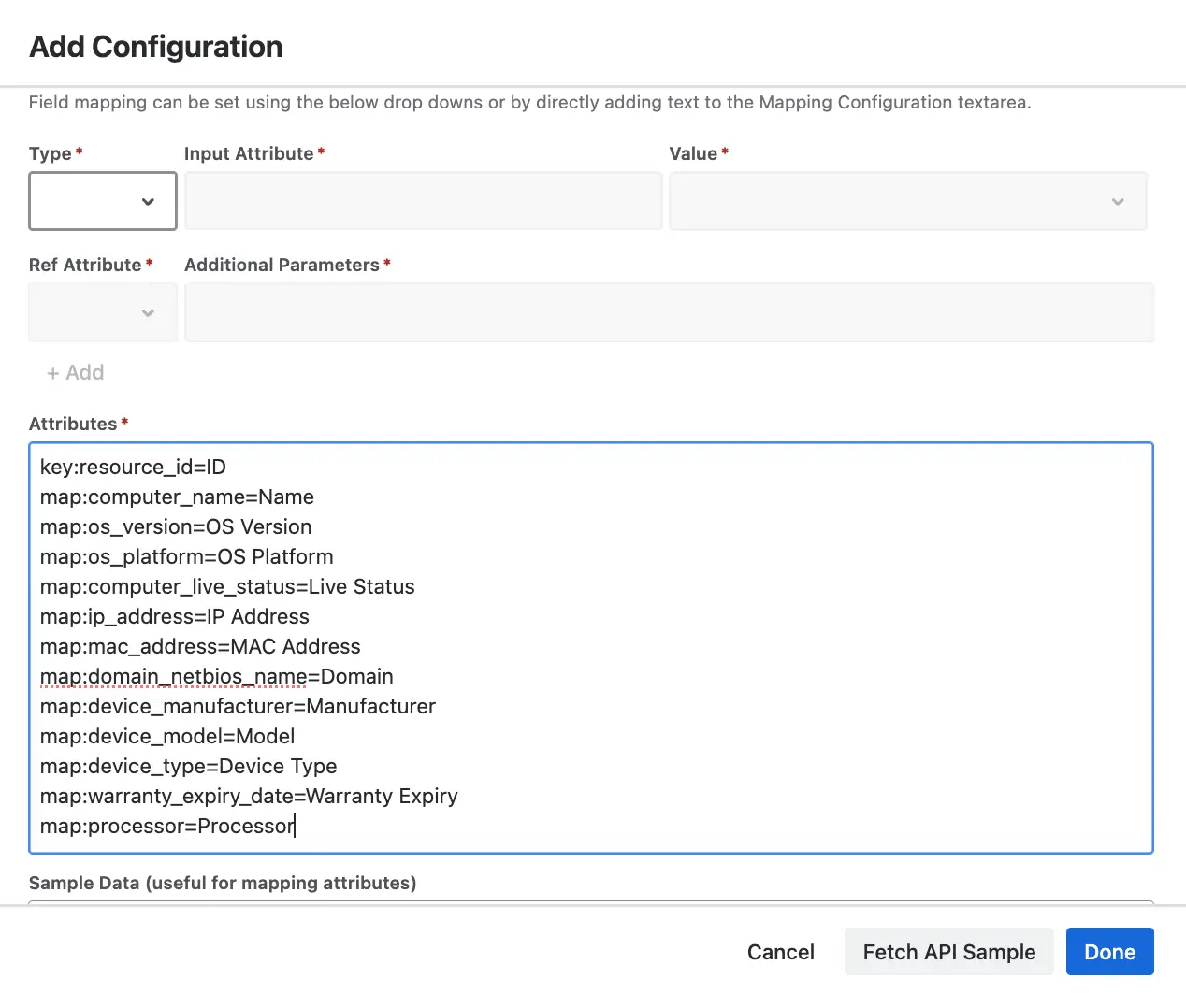
OnLink: attribute mapping from Endpoint Central computers to JSM Assets.
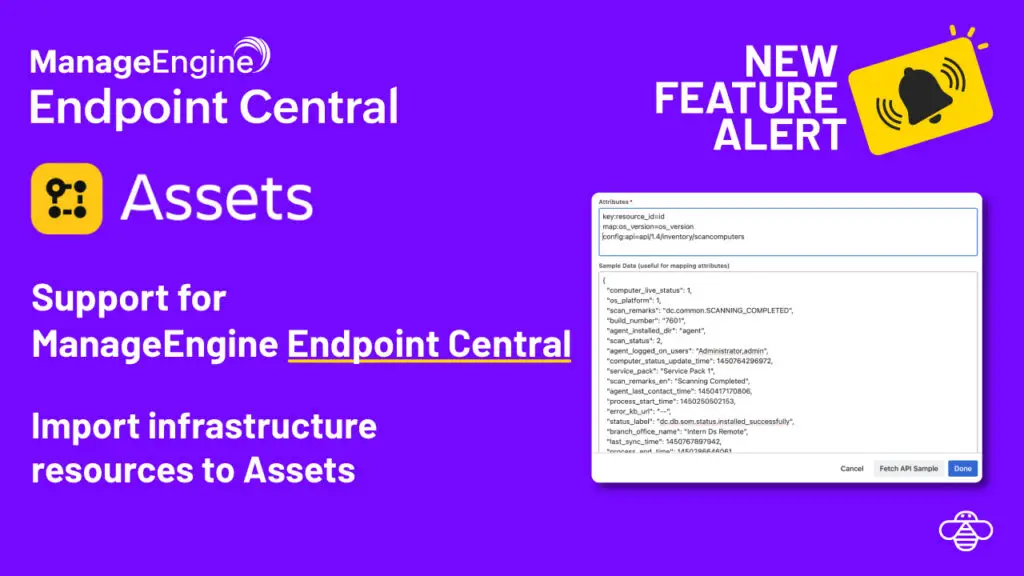
Step 4: Test with Fetch API Sample
Use the Fetch API Sample button in OnLink to pull sample data from Endpoint Central and verify that your connection and mapping are working correctly before running a full import.
Step 5: Run the import
OnLink processes data in two stages:
Get Data — Retrieves records from Endpoint Central and stages them for import.
Import Data — Writes the staged records into JSM Assets.
For manual testing, click Get Data first and wait until you see the message “No more pending records. Data will be imported on next Import run” in Job Logs. Then click Import.
For production use, OnLink automates both steps on a schedule you configure — so your Assets data stays in sync with Endpoint Central without manual intervention.
Field mapping reference: Endpoint Central to Assets
Below is a recommended field mapping from the Endpoint Central Inventory API response to a JSM Assets object schema. You can customize this based on which attributes matter most to your organization.
Endpoint Central Field
Type
Suggested Assets Attribute
Notes
resource_id
Numeric
ID (Key)
Unique identifier — use as the key field so OnLink can update records on subsequent imports
computer_name
String
Name
Hostname of the device
os_platform
Numeric
OS Platform
Platform identifier (e.g., 1 = Windows). Consider mapping to a Select List for readability
os_version
String
OS Version
Full OS version string
computer_live_status
Numeric
Live Status
1 = Live, 2 = Down, 3 = Unknown. Map to a Status attribute
ip_address
String
IP Address
Current IP address
mac_address
String
MAC Address
Network adapter MAC address
domain_netbios_name
String
Domain
Active Directory domain
installation_status
Numeric
Agent Status
Endpoint Central agent installation status
scan_status
Numeric
Last Scan Status
Last inventory scan result
device_manufacturer
String
Manufacturer
Hardware manufacturer (from Detail Summary API)
device_model
String
Model
Hardware model (from Detail Summary API)
device_type
String
Device Type
Desktop, Laptop, Server, etc. (from Detail Summary API)
warranty_expiry_date
String
Warranty Expiry
Warranty end date (from Detail Summary API)
processor
String
Processor
CPU details (from Detail Summary API)
Mapping syntax example for the full set:
					key:resource_id=ID
map:computer_name=Name
map:os_version=OS Version
map:os_platform=OS Platform
map:computer_live_status=Live Status
map:ip_address=IP Address
map:mac_address=MAC Address
map:domain_netbios_name=Domain
map:device_manufacturer=Manufacturer
map:device_model=Model
map:device_type=Device Type
map:warranty_expiry_date=Warranty Expiry
map:processor=Processor
TipBefore configuring your mapping, make sure the corresponding attributes exist in your JSM Assets object type schema. Create any missing attributes first, then reference them by exact name in your OnLink mapping configuration.
Syncing assets into JSM is really tough . . . until you use this app. This app allows you to connect with many different asset sources and significantly simplifies the sync process.
Alex Ortiz
Atlassian Community Leader · Marketplace review, Jun 2026
Ready to connect your endpoint data to JSM Assets?
If you're running ManageEngine Endpoint Central alongside Jira Service Management, the integration path is clear: bring your endpoint inventory into Assets and give your service desk the device context it needs to work faster and smarter.
How often does OnLink sync data from Endpoint Central?
You control the schedule. OnLink supports configurable sync intervals so you can run imports as frequently as needed — hourly, daily, or on a custom cadence that fits your environment.
Will this create duplicate assets in JSM?
No. The key directive in your mapping configuration (e.g., key:resource_id=id) tells OnLink to match incoming records against existing assets. If a record with the same key value already exists, OnLink updates it rather than creating a duplicate.
What authentication method does OnLink use with Endpoint Central?
OnLink uses the “Generating Authentication Key using API tool” method described in the Endpoint Central API documentation. You provide a username and password, and OnLink handles the token-based authentication flow automatically.
Do I need to create the Assets object schema before importing?
Yes. You should set up your object type and its attributes in JSM Assets before configuring the OnLink mapping. The attribute names in your mapping must match the attribute names in your schema exactly.
Can OnLink also import users and groups from ManageEngine?
Yes. ManageEngine ADManager Plus is supported through the same app for Active Directory users and groups, so people and endpoints land in the same Assets schema. All sources.
On this page
Endpoint Central data in Assets
Start a free trial of OnLink on the Atlassian Marketplace. ManageEngine is one of 70+ device, identity and HR sources in the same app.
Give OnLink a try today. Set up your first Endpoint Central to Assets import in minutes — no scripting required, no middleware to maintain, and no manual CSV uploads to keep up with. Your endpoint data belongs where your ITSM workflows are, and OnLink makes that connection seamless. Try OnLink on the Atlassian Marketplace; every other source the same app connects is listed in One App, Every Source.