SOTI MobiControl to Jira Service Management Assets
When a warehouse scanner stops working, the ticket says “my scanner” and the agent has to work out which one, who has it, and whether it’s still enrolled. OnLink now brings SOTI MobiControl devices into Jira Service Management Assets, so the device sits on the ticket and stays current.
In shortOnLink reads devices through one call to the MobiControl Get Devices API, using an API client and a read-only MobiControl admin over OAuth 2.0, and writes them into Assets with links to each device's assigned user and device group. It works with MobiControl Cloud and on-premises.
Why put SOTI MobiControl devices in Assets
MobiControl knows every rugged scanner, tablet and laptop your frontline teams carry. The requests about them land in Jira Service Management: broken scanners, lost tablets, swaps before a shift. With devices in Assets, agents and automations read model, owner, group and compliance directly instead of opening another console.
The right device on the ticket
Requesters pick the scanner or tablet from an Assets field. Model, OS, serial and group come with it.
Devices linked to people
Each device links to its assigned user's Person object, matched on email, so you know who has it.
Compliance and check-in at a glance
Enrollment status, compliance and last check-in sync on a schedule, so automations can flag devices that drop off.
One CMDB across your stack
MobiControl devices sit next to Intune, Jamf or Iru devices and Entra ID or Okta identities, in the same schema.
What it looks like in Jira Service Management
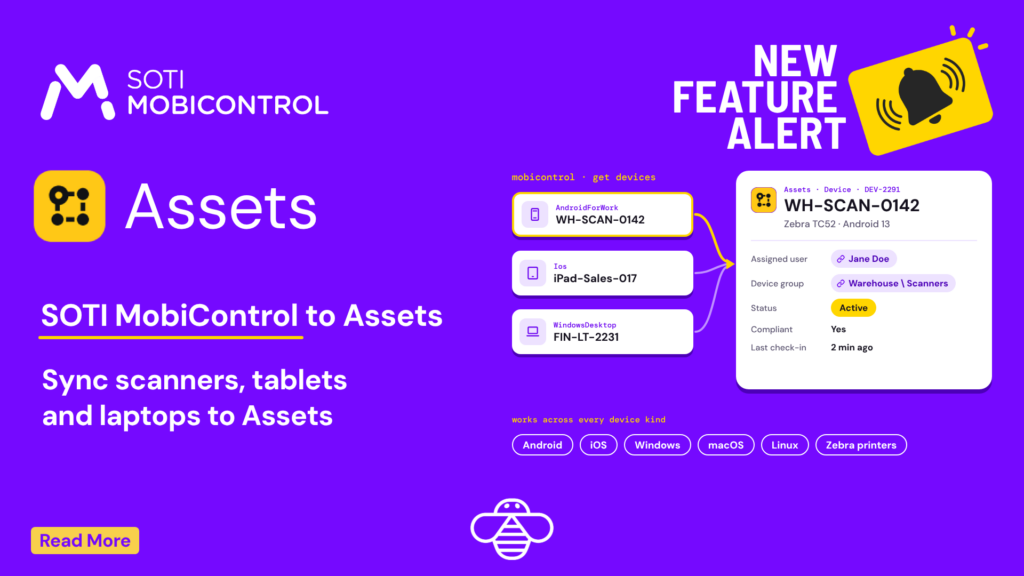
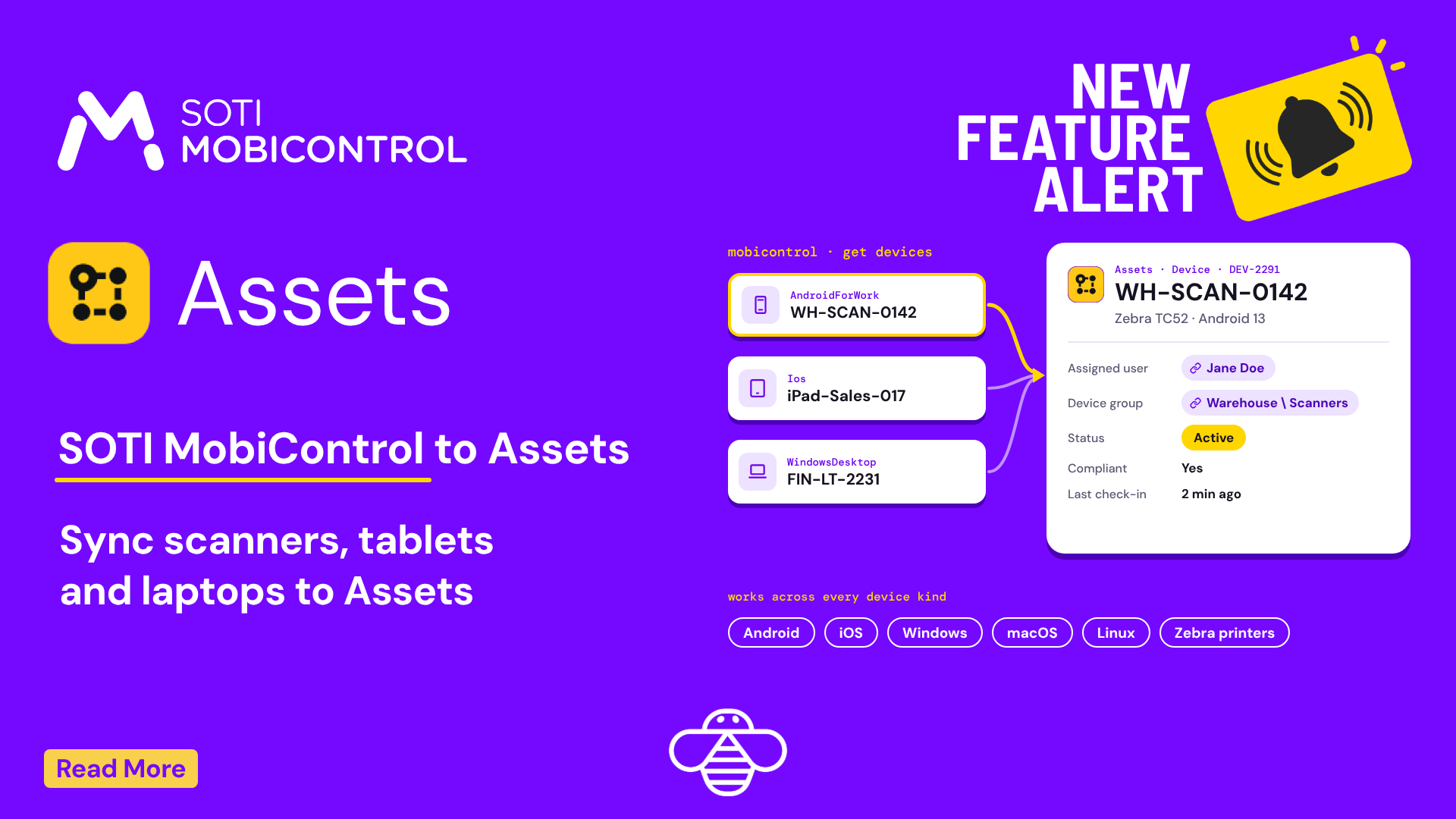
A warehouse lead raises a request and picks WH-SCAN-0142 from an Assets field. The agent sees a Zebra TC52 on Android 13, assigned to the lead, in the Warehouse\Scanners group, compliant but offline for two hours, and swaps in a spare from the same group. When a device is unenrolled in MobiControl, the next sync updates its status in Assets, and an automation can pick it up.
How SOTI MobiControl maps to Assets
One API call, Get Devices, becomes a Device object type linked to the objects around it:
Device, keyed on the MobiControl DeviceId: name, kind, family, manufacturer, model, OS version, serial, status, compliance, online flag, last check-in and enrollment date
Assigned user: a link to the Person object whose email matches the device user
Device group: the MobiControl group path, as text or a link to a Device Group object
Storage and custom attributes: nested fields such as Memory.TotalStorage and MobiControl custom attributes, mapped as needed
How it works
Setup comes down to three parts. The setup guide has every field and value.
1
Create a MobiControl API client
In MobiControl 2024.0 or later, add an API client under Global Settings, Services, API Client. Older on-premises servers use MCAdmin.exe, and some Cloud tenants get one from SOTI Support. Pair it with a read-only admin account.
2
Connect and pull devices
Add an Assets Data Source in OnLink with the OAuth 2.0 password grant. OnLink calls Get Devices with skip and take paging, sorted by DeviceId so no device is missed, and refreshes the token for you.
3
Map fields and schedule the sync
Key devices on DeviceId, map the fields you need, and set an hourly or daily schedule. Filter by Mode, Family or device group if you only want active Android scanners, for example.
Sample mapping for SOTI MobiControl devices:
					key:DeviceId=Device ID
map:DeviceName=Name
map:Kind=Device Kind
map:Model=Model
map:OSVersion=OS Version
map:HardwareSerialNumber=Serial Number
map:Mode=Status
map:ComplianceStatus=Compliant
map:LastCheckInTime=Last Check-In
map:Path=Device Group
map:DeviceUserInfo.Email=Assigned User|Email=${DeviceUserInfo.Email}
OnLink is one app with 100+ connectors. SOTI MobiControl joins device managers like Intune, Jamf Pro, Iru (Kandji), NinjaOne and Ivanti, plus HR systems, identity providers and security tools, all importing into the same Assets schema. One app to buy, one to manage.
Five questions you can answer once it's in Assets
Each device is an Assets object, so the questions people ask in Slack become saved AQL searches:
Question
AQL
Which scanners haven’t checked in today?
objectType = "Device" AND Family = "AndroidPlus" AND "Last Check-In" < startOfDay()
Which devices are non-compliant?
objectType = "Device" AND Compliant = false
What does Jane Doe carry?
objectType = "Device" AND "Assigned User".Email = "jdoe@example.com"
What’s in the warehouse groups?
objectType = "Device" AND "Device Group" LIKE "Warehouse"
Which unenrolled devices are still assigned?
objectType = "Device" AND Status != "Active" AND "Assigned User" IS NOT EMPTY
Bring your SOTI MobiControl devices into Assets
Start a free trial of OnLink on the Atlassian Marketplace and connect MobiControl with a read-only API client.
Does OnLink import SOTI MobiControl devices into JSM Assets?
Yes. OnLink imports devices from the MobiControl Get Devices API into Jira Service Management Assets, with assigned users and device groups as linked objects. It uses an Assets Data Source connection, so there is no custom code to maintain.
Does it work with MobiControl Cloud and on-premises?
Yes. Both expose the same REST API. Only the base URL and the way you create the API client differ.
How does OnLink authenticate with MobiControl?
With the OAuth 2.0 password grant: an API client ID and secret plus a MobiControl admin account. OnLink requests a new access token on each run.
Can I import only some devices?
Yes. Use the filter parameter, for example Mode:Active for enrolled devices or Family:AndroidPlus for Android Enterprise, or the path parameter for one device group.
How often does the data sync?
You set a schedule per import: hourly, daily, weekly or monthly. Hourly to a few times a day suits device data. Each run updates existing devices and adds new ones.
On this page
SOTI MobiControl in Assets
Start a free trial of OnLink on the Atlassian Marketplace and import your SOTI MobiControl devices today.