
This article walks you through importing device data from Device42 into Assets.
OnLink supports Basic Authentication against the Device42 API. You’ll need your Device42 username and password.
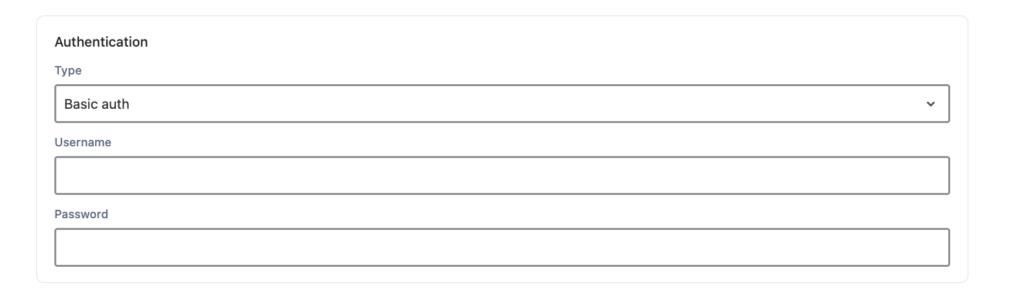
Refer to the Device42 API Authentication docs for full details.
Device42 offers two endpoints depending on how much detail you need.
GET /api/1.0/devices/
Returns core device information. Use this when you only need a lightweight import.
Sample fields:
| Device42 Field | Assets Attribute |
|---|---|
name | Name |
serial_no | Serial Number |
asset_no | Asset Number |
device_url | Device URL |
OnLink Field Mapping
key:serial_no=Serial No
map:asset_no=Asset No
map:device_url=Device URL
map:name=Name
OnLink Configuration
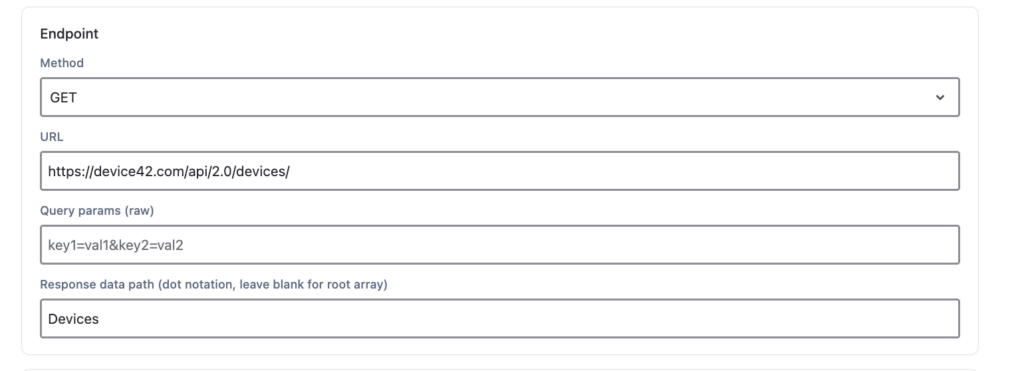
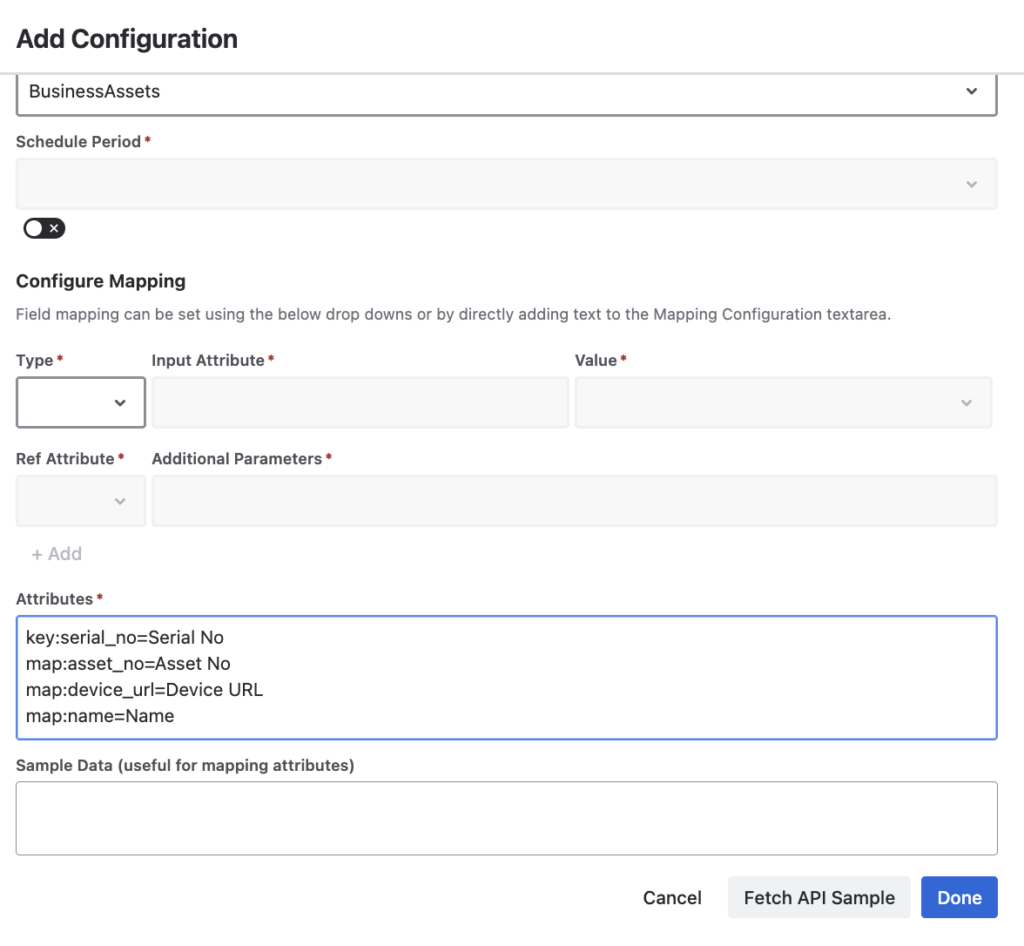
GET /api/1.0/devices/all/
Returns all device details including network and service information (available since v6.3.4). Use this when you need a comprehensive import.
Sample fields:
| Device42 Field | Assets Attribute |
|---|---|
ip_addresses | IP Addresses |
serial_no | Serial Number |
hw_depth | Hardware Depth |
device_id | Device ID |
service_level | Service Level |
key:serial_no=Serial No
map:ip_addresses=IP
map:device_id=Device ID
map:service_level=Service Level
Both endpoints support query parameters to narrow results and avoid pulling your entire inventory on every sync. Config:
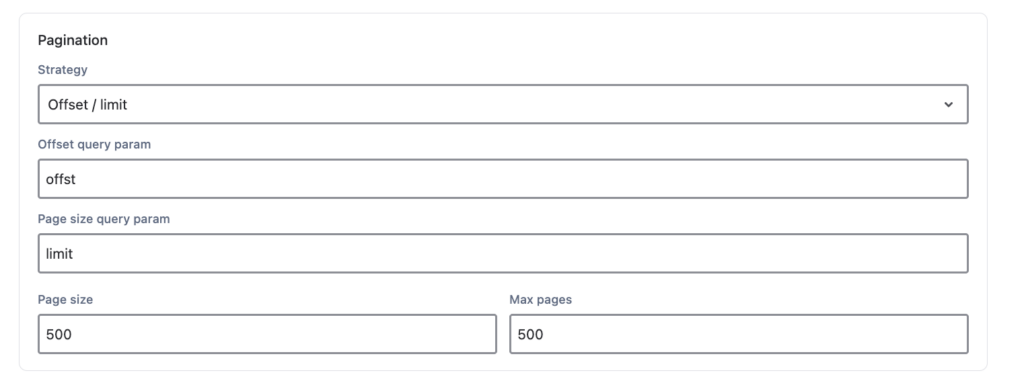
Tip: Use the
limitandoffsetparameters for pagination when working with large datasets.
Configure the OnLink connection — Point OnLink to your Device42 API endpoint (either /api/1.0/devices/ or /api/1.0/devices/all/) with your Basic Auth credentials.
Map fields — In OnLink, map the Device42 response fields to your Assets object type attributes using the mappings from Step 2.
Run the import — Execute the import. OnLink will pull records from Device42 and create or update corresponding objects in Assets.
Verify in Assets — Navigate to Assets, and confirm that the imported objects appear with the correct attribute values.
| Step | Action |
|---|---|
| 1 | Authenticate using Basic Auth |
| 2 | Choose /api/1.0/devices/ (basic) or /api/1.0/devices/all/ (detailed) |
| 3 | Apply filters to scope the import |
| 4 | Map fields in OnLink, run the import, verify in Assets |
If you are looking to import Device42 data into Assets, give OnLink a try.