Apple Business API | Apple Developer Documentation
https://developer.apple.com/documentation/applebusinessapiAutomate device management activities, view device information, and manage users and user groups in Apple Business.


Apple Business already knows every Mac, iPhone and iPad your company has bought: serial number, model, order number, assigned MDM server, AppleCare status.
With OnLink, you can pull that device data from the Apple Business API into Assets and keep it in sync. Here’s how, in four steps.
Apple Business is where IT teams enroll company-owned Apple devices through Automated Device Enrollment and assign them to an MDM server. The Apple Business API exposes that data, so you can:
Apple Business uses OAuth 2. An Organization Administrator creates an API account, which gives you a client ID and a private key. OnLink uses these to sign a client assertion (a JWT) and exchange it for an access token.
business.api and save.
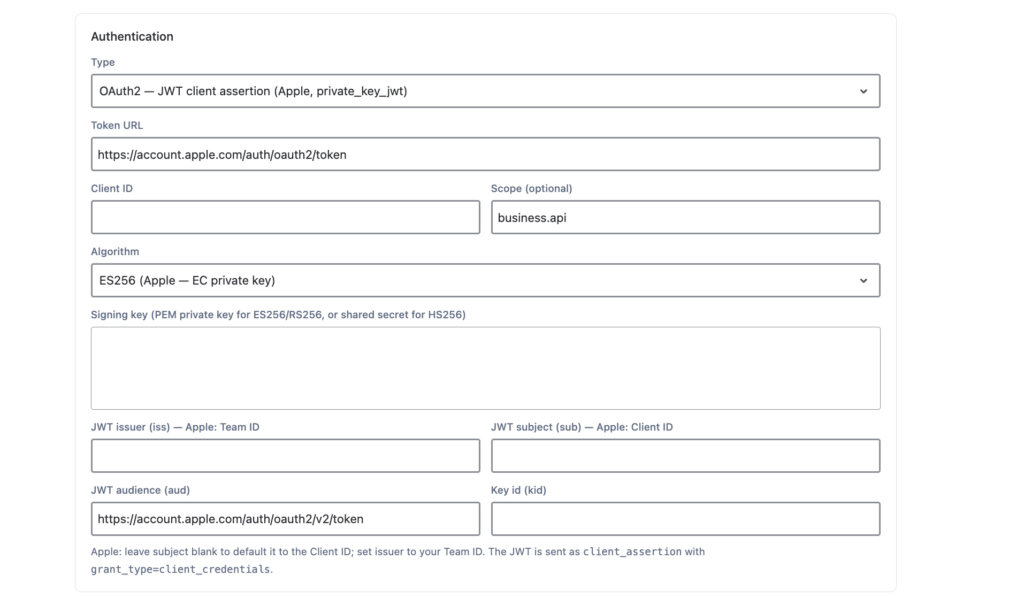
This example uses Apple’s Get Organization Devices endpoint. Configure the request in your data source:
Setting | Value |
|---|---|
Method |
|
URL |
|
Response data path |
|
Pagination | Cursor-based |
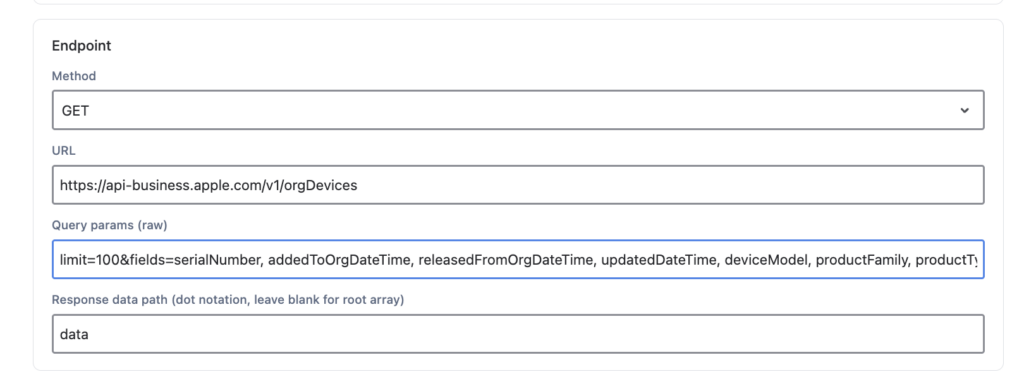
Add query parameters for the fields you want returned. Save, then run the data source to fetch a sample:
Apple pages results with cursors, so set up pagination before a full import. The endpoint has no filters; each run fetches every device.
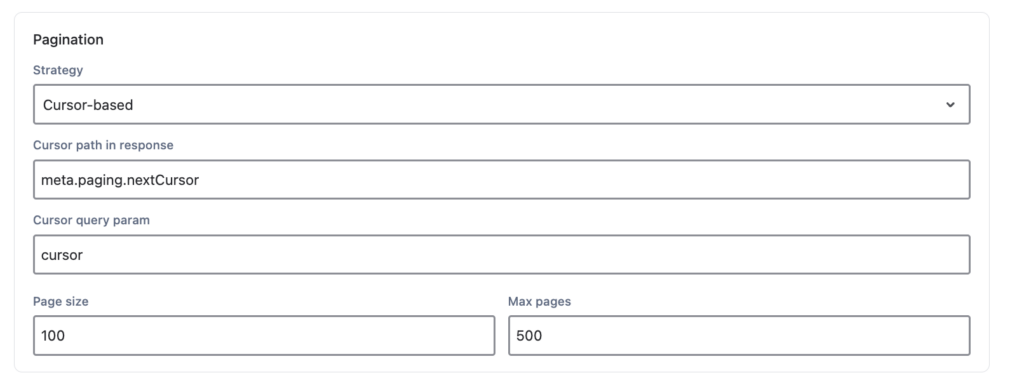
Devices are just one example. Point the same data source at any Apple Business API method, such as AppleCare coverage or users, and map what comes back.
Create the Assets import (JSM Assets Data Synchronization) and map Apple fields to your object type’s attributes. Use serialNumber as the key, so OnLink updates existing objects instead of creating duplicates.
Map only what you need, and make sure each target attribute exists in Assets with the same spelling. The full setup guide lists all 23 fields.
If you are using Apple Business, give OnLink a try to import into Assets.
Get OnLink on the Atlassian Marketplace and start a free trial, or follow the step-by-step setup guide.