NinjaOne to Jira Service Management Assets with OnLink, in three steps.
Before you startA NinjaOne administrator to create the API client (read-only Monitoring scope), OnLink installed on your Jira Cloud site, and an Assets object type for devices with a Device ID attribute. The field reference is the NinjaOne to JSM Assets setup guide.
Step 1: Connect OnLink to the NinjaOne API
OnLink connects to the NinjaOne Public API with OAuth client credentials. This is a machine-to-machine flow, so no user has to sign in.
In NinjaOne, go to Administration > Apps > API and add a client app.
Choose API Services (machine-to-machine).
Set the scope to Monitoring and the grant type to Client Credentials.
Copy the Client ID and Client Secret. The secret is shown only once.
In OnLink, create a new NinjaOne connection and use the API link to parse the connection details.
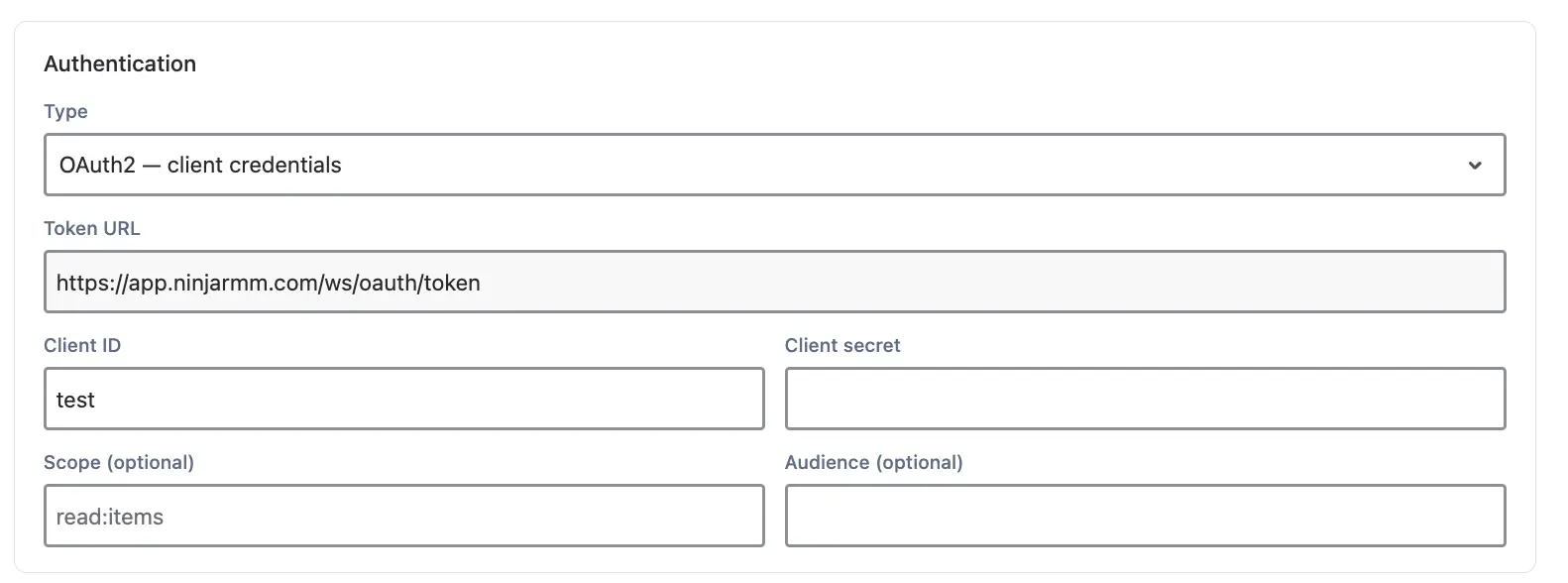
Select OAuth client credentials.
Set Token URL to https://app.ninjarmm.com/ws/oauth/token.
Enter the Client ID and Client Secret.
OnLink: OAuth client credentials for the NinjaOne Public API, token URL and the read-only Monitoring scope.
The read-only Monitoring scope is all OnLink needs to import device data. See NinjaOne’s Client Credentials Flow.
Step 2: Get devices from NinjaOne
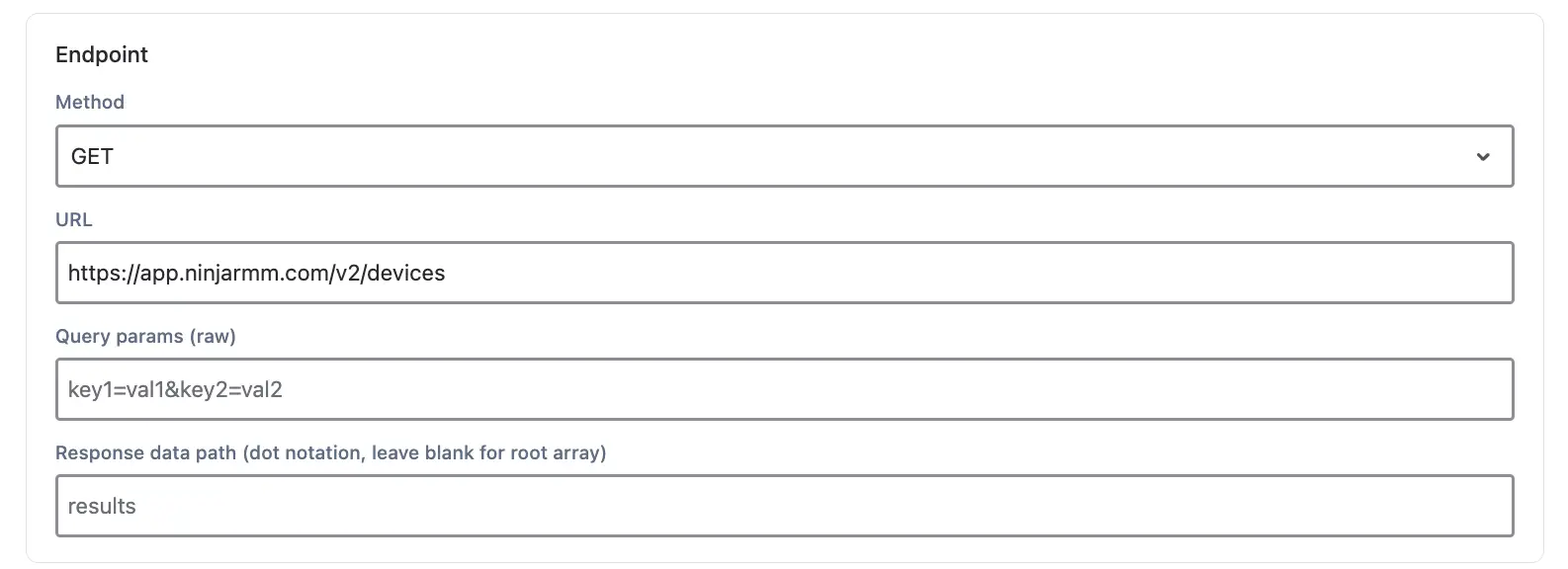
In the same connection, set up a GET request for your devices:
Setting
Value
Method
GET
URL
https://app.ninjarmm.com/v2/devices
Response data path
leave empty (the response is a JSON array)
Pagination
On, so OnLink pulls the whole fleet
Optional filter
df=status = APPROVED to import approved devices only
OnLink: GET /v2/devices with pagination on and an optional df device filter.
The NinjaOne API paginates results, so turn on pagination in OnLink to pull your whole fleet. To limit what comes back, add a device filter. For example, df=status = APPROVED returns approved devices only.
Save the connection, then run it to fetch sample JSON. The sample confirms the endpoint works and shows the field names you’ll map next.
Regional tenantsIf your NinjaOne tenant lives on eu.ninjarmm.com, ca.ninjarmm.com or oc.ninjarmm.com, use that host in both the token URL and the request URL.
Step 3: Map NinjaOne devices to Assets in OnLink
Create the Assets import by following the JSM Assets Data Synchronization guide. Then map NinjaOne fields to Assets attributes using key: and map: statements. The key: should be a stable, unique value, so OnLink updates existing objects instead of creating duplicates.
OnLink mapping
What it does
key:id=Device ID
Uses the NinjaOne device id as the unique key, so repeat syncs update instead of duplicate
map:systemName=Hostname
System name reported by the NinjaOne agent
map:displayName=Display Name
The name shown in the NinjaOne console
map:dnsName=DNS Name
Fully qualified DNS name
map:nodeClass=Device Class
WINDOWS_WORKSTATION, MAC, LINUX_SERVER and so on
map:approvalStatus=Approval Status
APPROVED or PENDING
map:offline=Offline
Whether the agent is currently offline
map:lastContact=Last Contact
Last check-in time; useful for stale-device filters
map:organizationId=Organization
NinjaOne organization, handy for MSP-style multi-tenant setups
These are examples. You can map any field in the response, as long as the matching Assets attribute exists. Use Get Data to preview the records and check that attribute names and case match. Once everything looks right, run the import and set a schedule. From then on, OnLink keeps Assets in sync as devices are added, changed, or retired in NinjaOne.
What agents can do with NinjaOne data in Assets
Your agents shouldn’t need a second console to know which laptop a user has, what OS it runs, or when it last checked in. With NinjaOne data in Assets, they can:
Incidents tied to the device
Link incidents and requests to the exact device affected
Owner on every device
Tie each device to its owner for faster onboarding and offboarding
Stale devices surfaced
Spot stale or offline devices before they become audit findings
Full fleet in the CMDB
Report on your full fleet next to the rest of your CMDB
Syncing assets into JSM is really tough . . . until you use this app. This app allows you to connect with many different asset sources and significantly simplifies the sync process.
Alex Ortiz
Atlassian Community Leader · Marketplace review, Jun 2026
Try OnLink for NinjaOne to Assets
OnLink is Cloud Fortified and connects 100+ sources, including NinjaOne, Intune, Jamf Pro and your HR systems, in one app. Start your free trial on the Atlassian Marketplace.
Only the read-only Monitoring scope, with the Client Credentials grant type. OnLink reads device data and never changes anything in NinjaOne.
My NinjaOne tenant isn't on app.ninjarmm.com. Will it still work?
Yes. Use your own instance host, such as eu.ninjarmm.com or ca.ninjarmm.com, in both the Token URL and the request URL.
Can I import only some devices?
Yes. Add a NinjaOne device filter (df) to the request URL. For example, df=status = APPROVED returns approved devices only.
How does OnLink avoid creating duplicate assets?
The key: mapping uses the NinjaOne device id to match records. If an object with that key already exists, OnLink updates it instead of creating a new one.
Can I map fields that aren't in the example table?
Yes. You can map any field returned in the response, as long as a matching attribute exists on your Assets object type.
How do I keep Assets up to date?
Set a schedule on the import in OnLink. Each run picks up devices that were added or changed in NinjaOne since the last sync.
What if I lose the Client Secret?
NinjaOne shows the secret only once. Regenerate it under Administration > Apps > API, then update the OnLink connection.
Can I combine NinjaOne with other device and HR sources?
Yes. OnLink connects 100+ sources in one app, including Intune, Jamf Pro, and HR systems. That lets you link NinjaOne devices to the people who use them.
How does NinjaOne data in Assets compare with Intune, Jamf Pro or Huntress imports?
They complement each other. NinjaOne gives you RMM status, approval and last contact; Intune and Jamf Pro add compliance and configuration; Huntress adds security agents. OnLink imports all of them in one app, and keying on a shared value such as serial number or hostname merges them into one Assets object.
On this page
NinjaOne data in Assets
Start a free trial of OnLink on the Atlassian Marketplace. NinjaOne, Intune, Jamf Pro, Huntress and 100+ more in one app.