
OnLink imports Huntress agents into Atlassian Assets in three steps: connect to the Huntress API with Basic Auth, pull devices from the agents endpoint, and map the fields to Assets attributes. Every Huntress-protected device then becomes an Assets object your team can link to Jira Service Management requests and incidents.
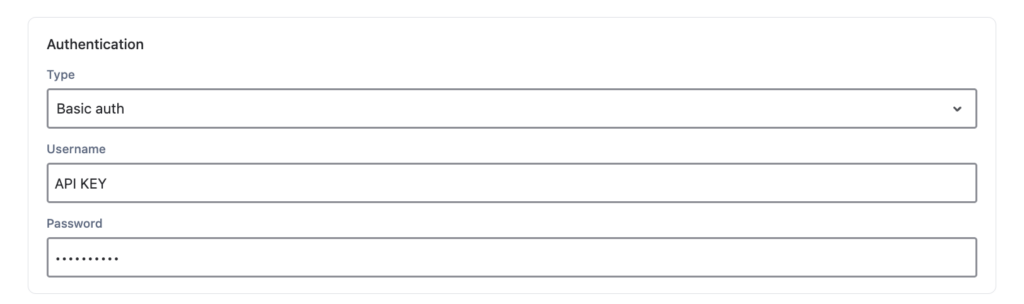
OnLink connects to the Huntress API v1 with Basic Auth, using a Huntress API key and secret. It only sends GET requests, so nothing in Huntress changes.
Huntress has deprecated the account-level API key in favor of user keys, so use a user key for new connections. Huntress API reference
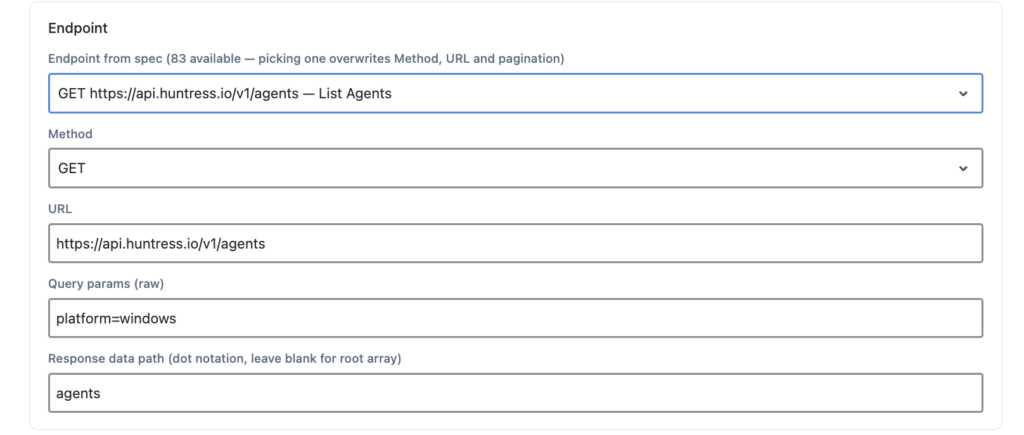
In Huntress, each protected device is an agent. Set up the OnLink request to pull them from the agents endpoint:
Setting | Value |
|---|---|
Method |
|
URL |
|
Response data path |
|
Leave the other settings at their defaults unless you need filters. Huntress returns agents in pages, so configure pagination in OnLink and each import retrieves every agent.
Save and run the connection to fetch sample data. Each agent comes back like this (trimmed):
{
  "id": 1,
  "hostname": "laptop01",
  "domain_name": "WORKGROUP",
  "platform": "windows",
  "os": "Windows 8 Pro",
  "serial_number": "wtIe1bvDbh",
  "ipv4_address": "146.134.139.9",
  "defender_status": "Healthy",
  "firewall_status": "Disabled",
  "tamper_protection_actual": true,
  "last_callback_at": "2022-03-01T20:05:10Z",
  "organization_id": 7,
  "tags": ["Server", "Production"]
}
Use the sample to confirm the endpoint and the field names you’ll map. To import a subset, add query parameters to the URL, such as platform=windows for Windows agents only.
Create or confirm the target Assets schema and object type (for example, Computer or Endpoint), then create the import as described in JSM Assets Data Synchronization. OnLink mappings use key: for the unique key and map: for each attribute. Use the Huntress agent id as the key so updates land on the same object every sync.
Mapping | What it stores |
|---|---|
| Huntress agent ID, the unique key for matching and updating objects |
| Hostname |
| Domain or workgroup name |
| Primary IPv4 address |
| Operating system name |
| Platform, such as Windows, macOS, or Linux |
| Device serial number |
These are examples. You can map any field in the Huntress response, such as last_callback_at, defender_status, firewall_status, or tags, as long as the Assets attribute exists.
Use Get Data to preview the records and check that attribute names match in spelling and case. Then run the import and set a schedule. From then on, OnLink keeps Assets in sync as agents are installed, updated, or removed in Huntress.
A user API credential. Huntress has deprecated the account-level key, and a user key carries the permissions of the user it’s assigned to, so pick someone who can see every organization you want to import.
No. OnLink only sends GET requests to read agent data.
The Huntress agent id (key:id=Device ID). Hostnames can change or repeat across clients, but the ID stays the same, so each sync updates the right Assets object.
Yes, once pagination is configured. Huntress returns agents in pages of up to 500, and OnLink follows the pages so each import gets every agent.
Yes. Add Huntress query parameters to the request URL: platform=windows for Windows agents, organization_id for one organization, or updated_at_min for recently changed agents.
Yes, when Huntress returns them. Fields like defender_status, firewall_status, and tamper_protection_actual map like any other: create the Assets attribute, then add a line such as map:firewall_status=Firewall Status.
Check that the attribute name in your map: line matches the Assets attribute exactly, including case. Then use Get Data to confirm Huntress returns a value; some fields, like external_ip, can be null.
Yes. Map organization_id to an Assets attribute to group devices by Huntress organization, or filter the request by organization_id to import one organization at a time.
Your team shouldn’t need the Huntress portal open to know whether a laptop is protected, which client it belongs to, or when it last checked in. With Huntress data in Assets, they can:
OnLink is Cloud Fortified and connects 100+ sources, including Huntress, CrowdStrike, Intune, Jamf Pro, NinjaOne, and your HR systems, in one app.
Start your free trial of OnLink on the Atlassian Marketplace → LINK