
Every day, your team is broadcasting micro-signals. Its easy to categorize most as noise and miss out on early warning signals.
These aren’t noise. And by the time your annual engagement survey rolls around — 60+ questions, results delivered three months later, action plans that are no longer relevant.
Your annual survey didn’t fail because of bad questions. It failed because it arrived too late.
This article explores why, what most organizations get wrong, and how you can implement a continuous feedback system inside Workday using OnSurvey — complete with step-by-step instructions.Despite the growing adoption of pulse surveys and continuous feedback tools, most organizations are still making fundamental mistakes that undermine the entire effort.
The single biggest failure in employee feedback is gathering data and doing nothing visible with it.
Many organizations still run 60-to-80-question annual surveys and call it “listening.” The problem isn’t just frequency — it’s cognitive load. A survey that takes 20 minutes to complete feels like an obligation, not a conversation.
Feedback data that flows exclusively to HR or executive leadership misses the point. Managers are the ones who can act on team-level signals in real time.
A question about cafeteria food and a question about psychological safety require very different follow-up protocols. Organizations that dump all survey responses into a single dashboard without categorization, prioritization, or escalation paths end up paralyzed by data instead of empowered by it.
The 2026 NAMI-Ipsos Workplace Mental Health Poll found that while 75% of employees say it’s appropriate to discuss mental health at work, 41% still cite stigma and judgment as barriers. If your surveys don’t deliberately create a safe channel for mental health and workload concerns, you’re missing the signals that matter most.
The pulse survey landscape is evolving rapidly. Here’s what’s different this year:
AI-powered sentiment analysis is now standard. Tools can now detect emotional undertones in open-text responses, flagging urgent concerns automatically and surfacing themes that would take HR teams weeks to identify manually.
Personalized survey cadences are replacing one-size-fits-all schedules. Rather than blasting the entire company with the same questions on the same day, leading platforms now tailor question sets and delivery timing based on role, tenure, recent life events (like a team change or return from leave), and even individual response patterns.
Manager-level dashboards have matured. In 2024, most platforms gave managers a basic score. In 2026, managers get trend lines, team comparisons (anonymized), recommended actions, and integration with their existing workflow tools. The data meets managers where they work, rather than requiring them to log into yet another dashboard.
Mental health and workload questions are no longer optional. Driven by growing regulatory attention to psychosocial risk and the post-pandemic normalization of mental health conversations, leading organizations now include wellbeing and workload questions as a permanent fixture in their pulse surveys.
Native Integration with Workday is a differentiator. Standalone survey tools create data silos. The 2026 expectation is that feedback data lives alongside performance, compensation, and development data in a unified system, enabling holistic people decisions.
Designing the right questions is critical. Here are evidence-based questions — informed by frameworks from NAMI, NIOSH, and Mental Health America — that you can deploy as part of your continuous feedback program using OnSurvey:
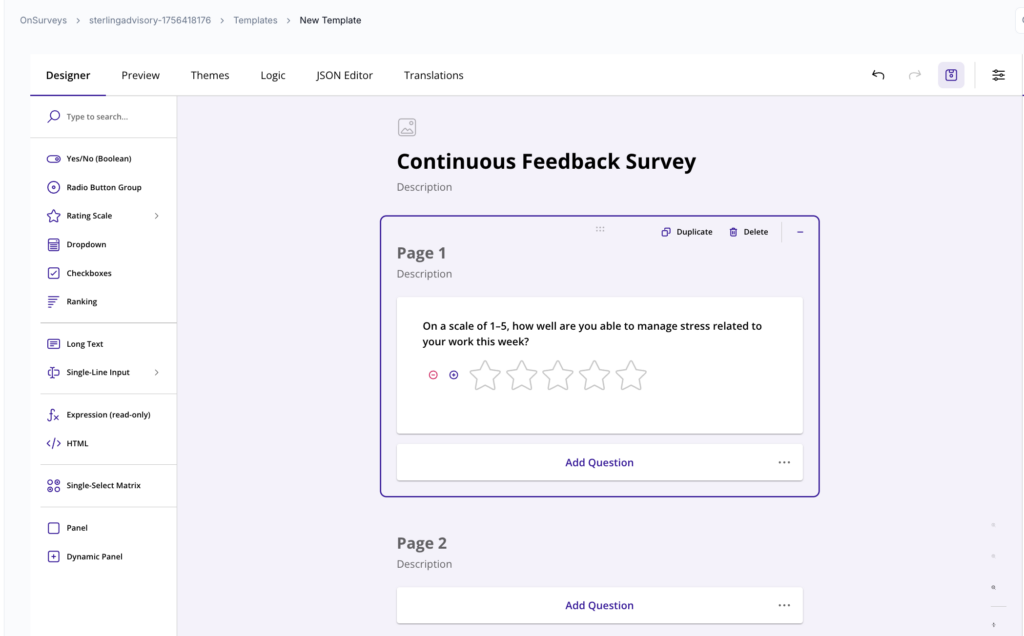
OnSurvey is a built-on Workday app that enables Workday users to create, send and analyze surveys. Here’s how to set it up, step by step.
OnSurvey’s visual designer lets you build surveys that are short, focused, and optimized for high response rates.
How to do it:
Design tips for quick, frequent feedback:
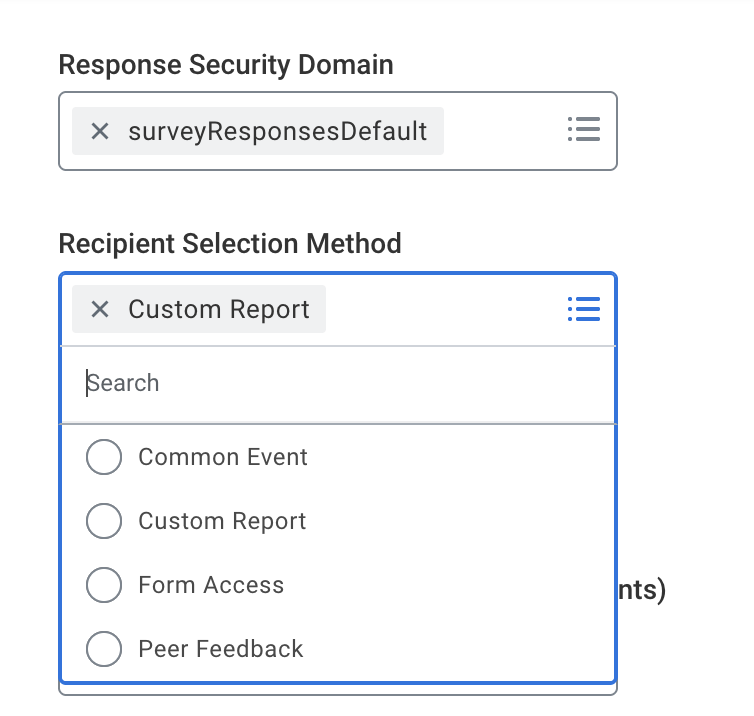
Continuous feedback only works if surveys reach the right people at the right time. OnSurvey’s trigger engine integrates directly with Workday business processes.
How to do it:
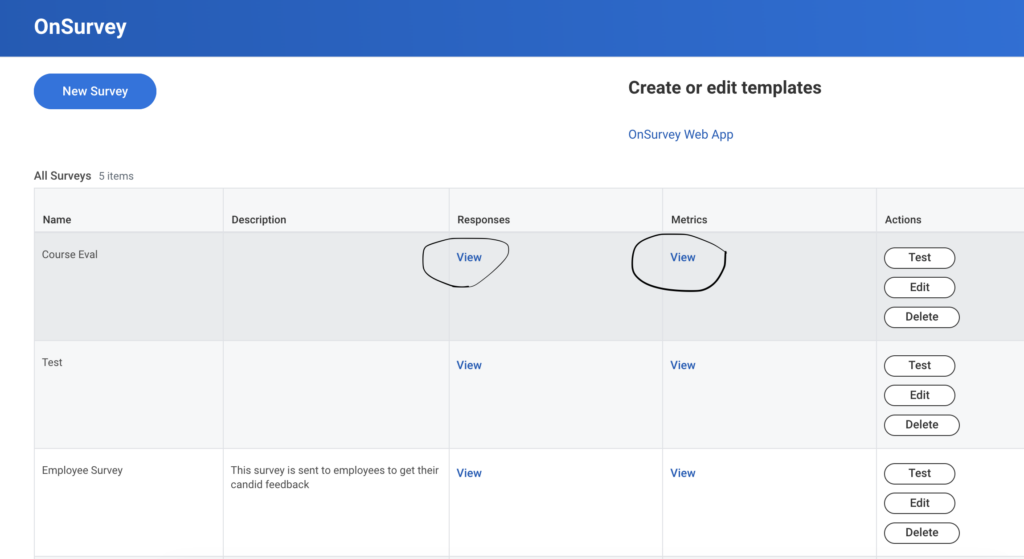
Once surveys are live, OnSurvey captures and processes responses in real time within Workday.
How to do it:
Let’s walk through a complete scenario.
Try OnSurvey today. See how continuous feedback can help you catch what annual surveys miss.
Request a Demo | About OnSurvey