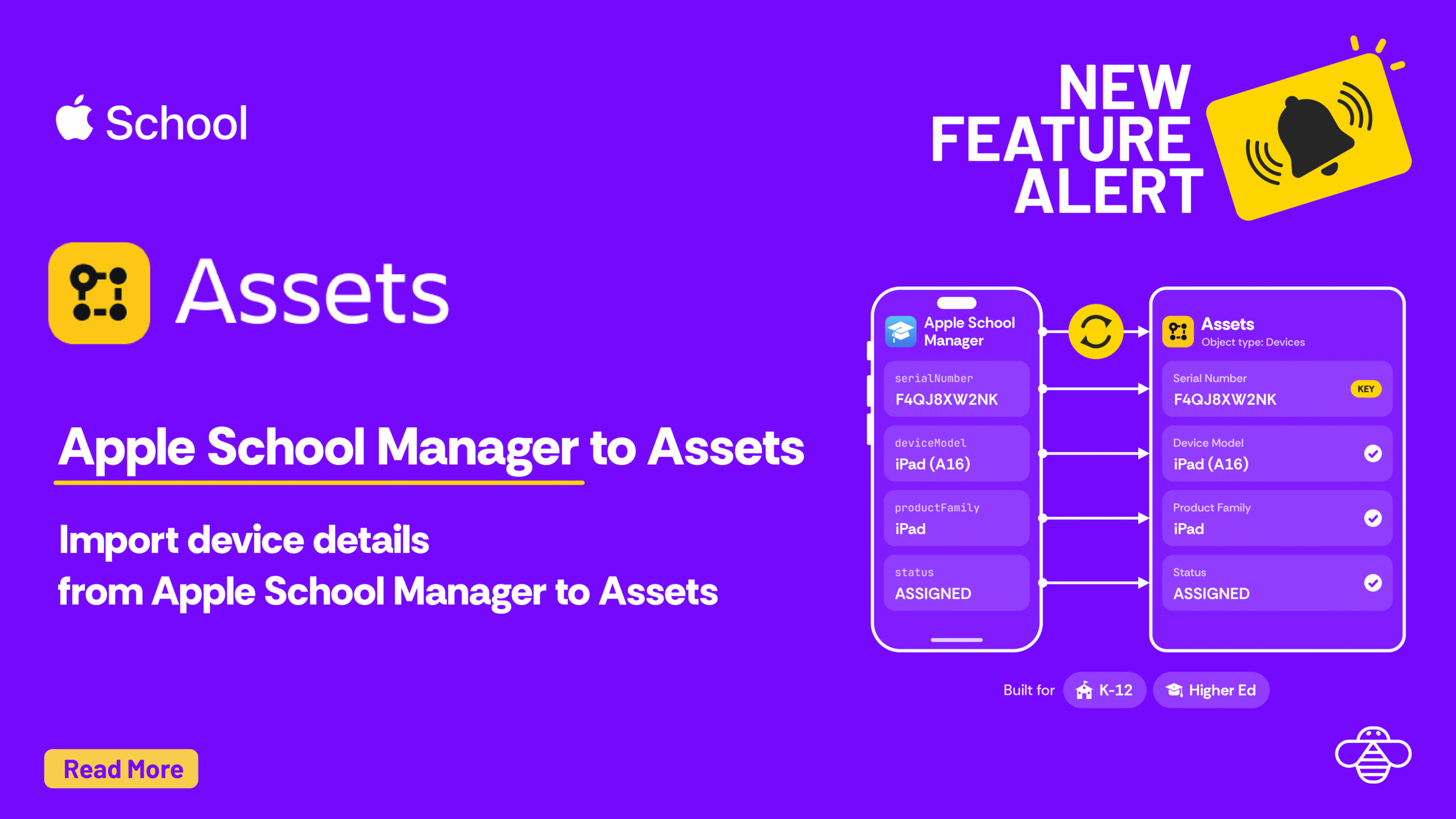

This guide is for Higher Ed and K12 IT teams that use Apple School Manager. We show you how you can manage devices in Assets.
Quick preview of other sources you can import to Assets
Source | What it brings into Assets |
|---|---|
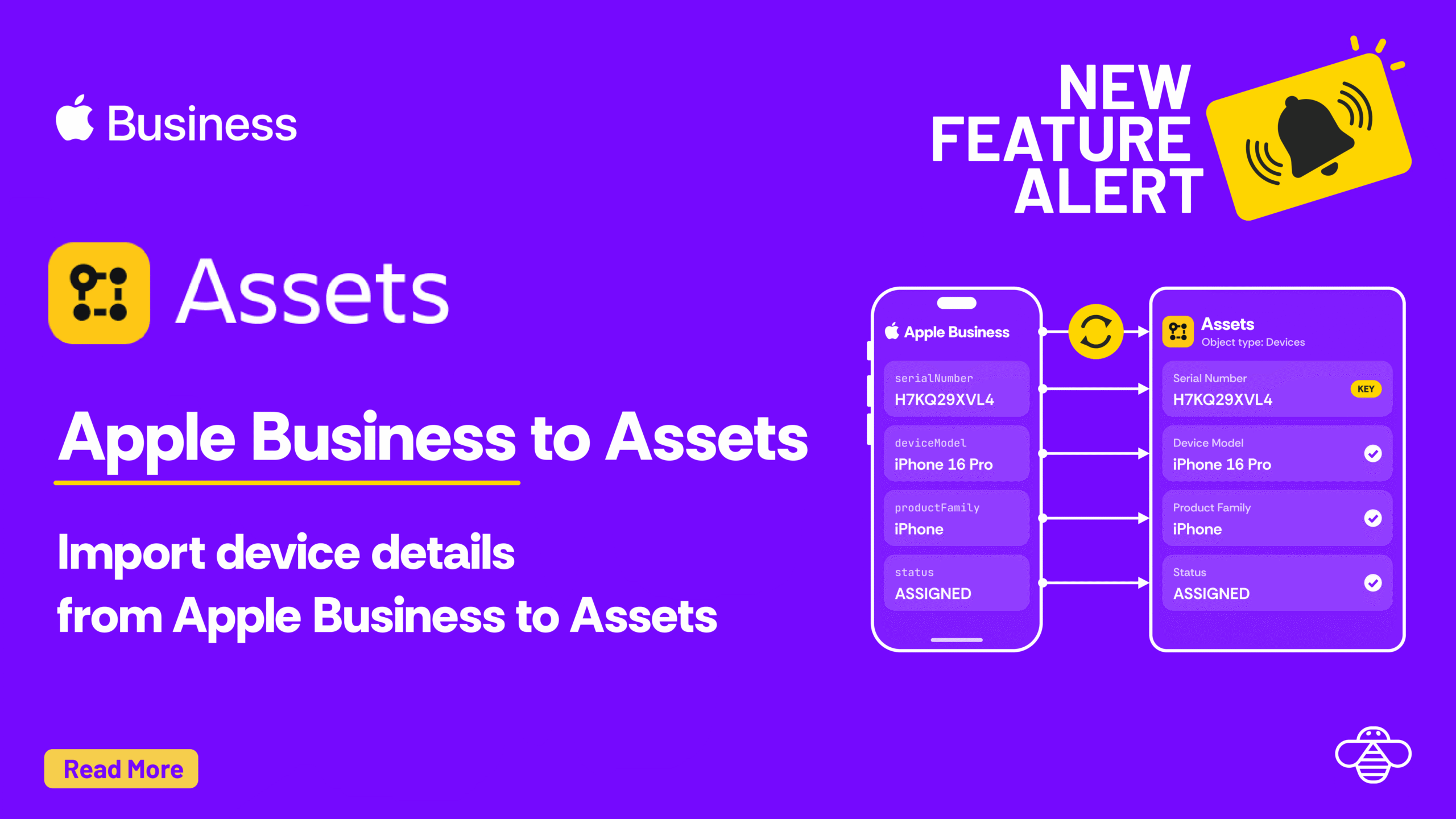
Apple devices for organizations on Apple Business, the counterpart to Apple School Manager | |
Employee records from Personio HR | |
Data from any Snowflake tabels to Assets | |
Data from ServiceNow CMDB to Assets | |
Mobile devices and computers from Jamf Pro, the common pairing with Apple School Manager |
The Apple School Manager API is a REST API for the devices your institution enrolls through Automated Device Enrollment. This guide uses one endpoint, Get Organization Devices, which returns every device in your organization with its hardware, order and purchase details.
The same API also covers:
Apple School Manager uses OAuth 2 with a private key, so there’s no password to share. You create an API account in Apple School Manager, then give OnLink its credentials.
In Apple School Manager (Apple’s guide)
.pem file downloads once, so store it somewhere safe.In OnLink
school.api. (Apple Business uses business.api instead.)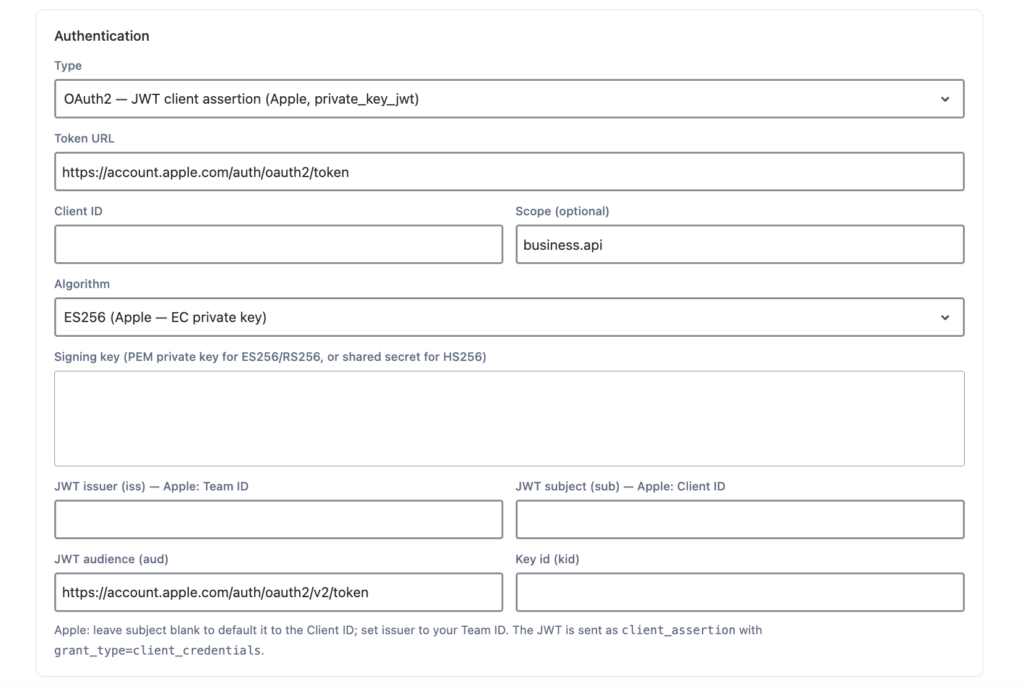
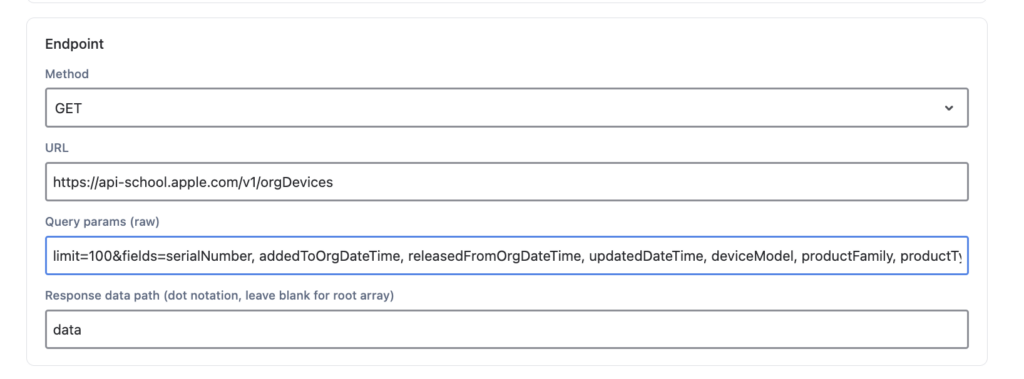
Configure the request in the data source:
Setting | Value |
|---|---|
Method |
|
URL |
|
Response data path |
|
Pagination | Cursor-based ( |
Save and run it to pull sample data. Each device comes back like this (trimmed):
This is one example. You can point the same data source at any Apple School Manager endpoint, such as a device’s AppleCare coverage.
Create the Assets import (JSM Assets Data Synchronization), then map Apple fields to your Assets attributes. Use one key: line so OnLink knows when to update an existing object instead of creating a new one. Serial number is the natural choice.
OnLink mapping | What it stores |
|---|---|
| Unique key for matching objects |
| Model, such as iPad (10th generation) |
| Mac, iPad, iPhone, Apple TV |
| Apple hardware identifier |
| Storage size |
| Device color |
| Assigned or unassigned to an MDM server |
| Purchase order number |
| When the device was ordered |
| When it joined Apple School Manager |
| When it was released |
| Wi-Fi MAC, handy for network teams |
| IMEI for cellular devices |
The full setup guide lists every supported field.
OnLink connects Apple School Manager, your MDM and your HR systems to Jira Service Management Assets, with 100+ connectors in one app. Set up the Apple School Manager template once and give your service desk the full device picture.
Try OnLink on the Atlassian Marketplace or talk to our team.
We already sync Jamf (or Intune, Kandji/Iru) to Assets. Why add Apple School Manager? They answer different questions. Apple School Manager is the purchase record: what you bought, when, on which order, and which MDM server it’s assigned to. Your MDM knows the device’s current state. Import both and key them on serial number, and you can spot devices you own that never enrolled.
Which devices does the API return? Devices in your organization that enroll through Automated Device Enrollment: those bought from Apple or an authorized reseller or carrier, plus any added with Apple Configurator.
Who can create the API account? An Administrator or Site Manager in Apple School Manager. You can have up to 50 API accounts, so you can keep one just for OnLink.
Does this bring student or staff personal data into Jira Service Management? No. The organization devices endpoint returns hardware, order and purchase details. It has no student or staff names.
Can we import AppleCare coverage too? Yes. Add a second data source that calls the AppleCare coverage endpoint and map it to the same object type, keyed on serial number. Your service desk then sees warranty status right on the device.