
This guide covers how to connect Crowdstrike Falcon to Assets in Jira Service Management.
CrowdStrike exposes Falcon data through a REST API secured with OAuth2 client credentials. Full reference: developer.crowdstrike.com/api-reference.
Create an API client
OnLink – JSM Assets.Pick your base URL
Your API base URL depends on the cloud your Falcon tenant runs in:
| Cloud | Base URL |
|---|---|
| US-1 | https://api.crowdstrike.com |
| US-2 | https://api.us-2.crowdstrike.com |
| EU-1 | https://api.eu-1.crowdstrike.com |
| US-GOV-1 | https://api.laggar.gcw.crowdstrike.com |
The access token is issued from POST {base}/oauth2/token. OnLink handles the token exchange and refresh for you.
How Falcon returns host data
Falcon uses a two-step pattern:
GET /devices/queries/devices-scroll/v1POST /devices/entities/devices/v2 with body {"ids": [...]}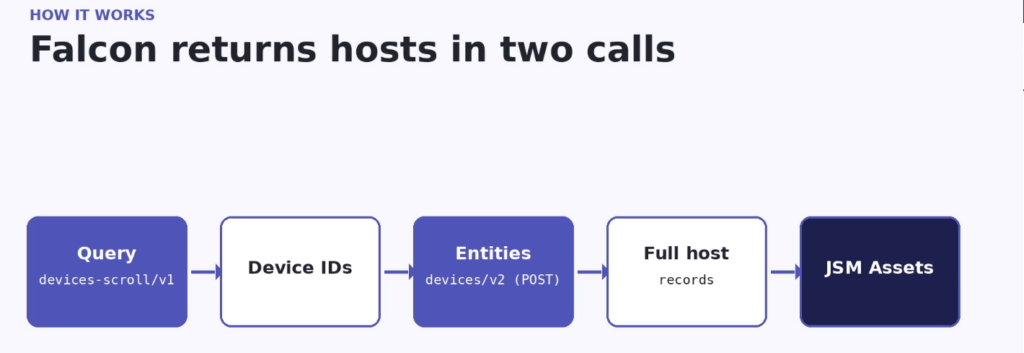
OnLink supports this pattern natively, which you’ll see in the configuration below.
Before you start, make sure you have:
Step 1 – Add the data source
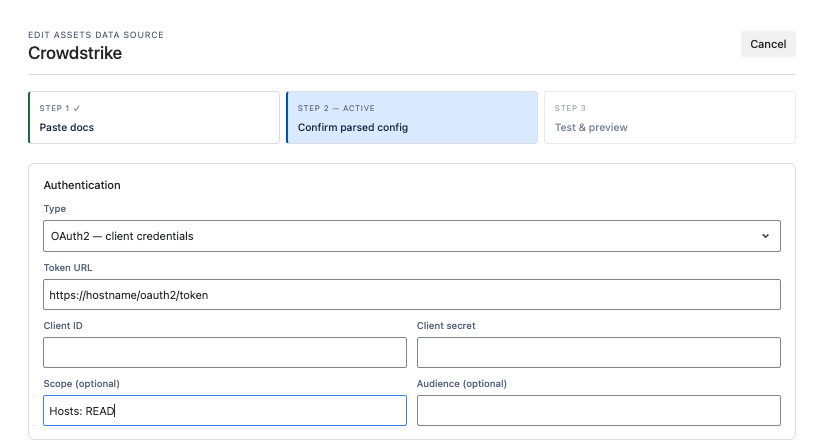
Step 2 – Configure the API method (fetch device IDs)
GEThttps://{your-base-url}/devices/queries/devices-scroll/v1resources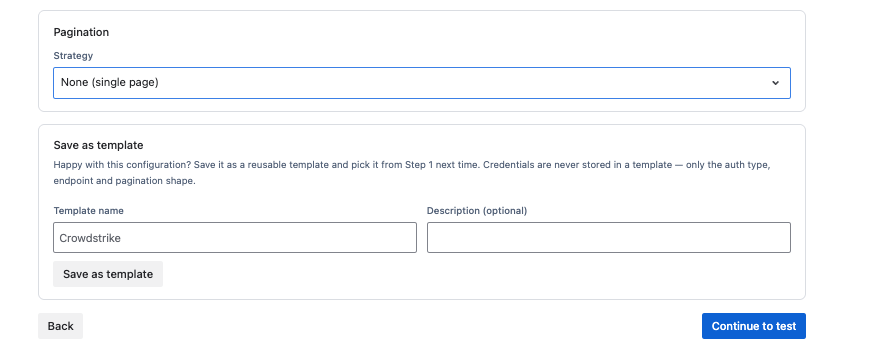
Step 3 – Configure the detail call (fetch device details)
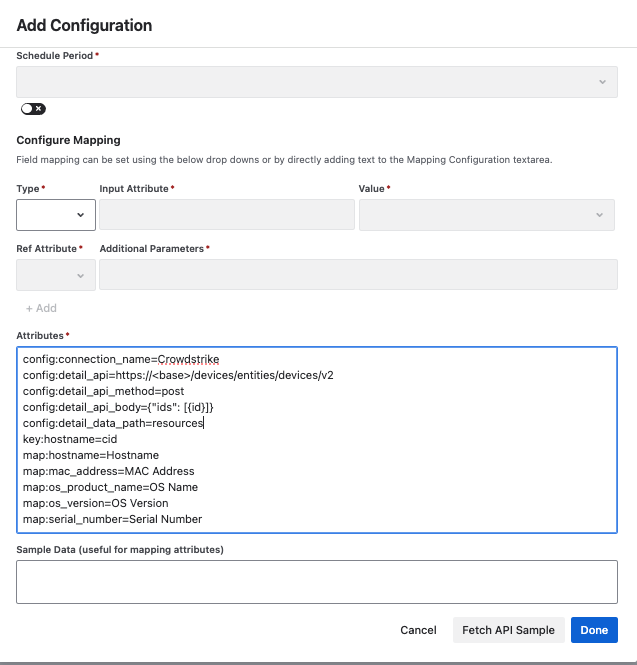
In the Assets import, add these config lines so OnLink takes each batch of IDs and fetches full host records:
config:connection_name=Crowdstrike
config:detail_api=https://{your-base-url}/devices/entities/devices/v2
config:detail_api_method=post
config:detail_api_body={"ids": [{id}]}
config:detail_data_path=resources| Setting | What it does |
|---|---|
connection_name | The connection you created in Step 1. Select it from the list. |
detail_api | The second call that returns full records. Swap it to fetch applications or other objects. |
detail_api_method | GET or POST, depending on the endpoint. Falcon’s device details use POST. |
detail_api_body | The request body. For Falcon this is the ids array. |
detail_data_path | The JSON path in the response that holds the records (resources). |
Use Get Data in OnLink to preview a sample of the Falcon response, then map the JSON fields to your Assets attributes.
key:device_id=Device ID
map:hostname=Hostname
map:mac_address=MAC Address
map:os_product_name=OS Name
map:os_version=OS Version
map:serial_number=Serial Number| Falcon field | Assets attribute | Notes |
|---|---|---|
device_id | Device ID | Key. Falcon’s unique host ID. OnLink uses it to decide create vs. update. |
hostname | Hostname | |
mac_address | MAC Address | |
os_product_name | OS Name | e.g. macOS, Windows 11 |
os_version | OS Version | |
serial_number | Serial Number | Handy for matching against HR or device-management data |
Other useful fields to consider: local_ip, external_ip, platform_name, system_manufacturer, system_product_name, agent_version, last_seen, status, and tags.
Mapping tips
key: mapping. It’s what keeps re-imports from creating duplicates.Full import walkthrough: JSM Assets Data Synchronization. Step-by-step guide for this integration: CrowdStrike to JSM Assets.
You could write a script against the Falcon API. Then you’d need somewhere to run it, a way to rotate secrets, retry logic for rate limits, and someone to fix it when a field changes. OnLink takes that off your plate.
If you’re running JSM Assets and CrowdStrike Falcon, you can have endpoint data flowing into your CMDB today.
Try OnLink on the Atlassian Marketplace → and follow the CrowdStrike to JSM Assets guide. Need help with your schema or mappings? Talk to the Onward team.
1. Which CrowdStrike API scopes does OnLink need? Read-only access is enough. Use Hosts: READ for managed devices. Add Assets: READ if you also want Falcon Discover data such as installed applications, unmanaged hosts, or accounts. OnLink doesn’t need any write scopes.
2. Can I import only some devices, e.g. Windows servers or one host group? Yes. Add an FQL filter query parameter to the query call. For example, filter=platform_name:'Windows'+product_type_desc:'Server' imports only Windows servers. You can also use sort and limit to control the order and batch size.
3. How does OnLink avoid creating duplicate assets? The key: mapping. OnLink matches each incoming record on the key attribute (we recommend Falcon’s device_id). If a matching object exists it’s updated; if not, a new one is created.
4. Can I import installed applications as well as devices? Yes. With the Assets: READ scope, point the query call at /discover/queries/applications/v1 and the detail call at /discover/entities/applications/v1, then map the application fields to an Applications object type. You can link applications to devices using an object reference attribute.
5. How often does the data sync, and what happens if the API is unavailable? You set the schedule in OnLink (hourly, daily, or whatever suits your environment). If Falcon returns an error or rate-limits a request, OnLink’s framework retries automatically and logs the result, so a temporary outage doesn’t leave you with a half-finished import