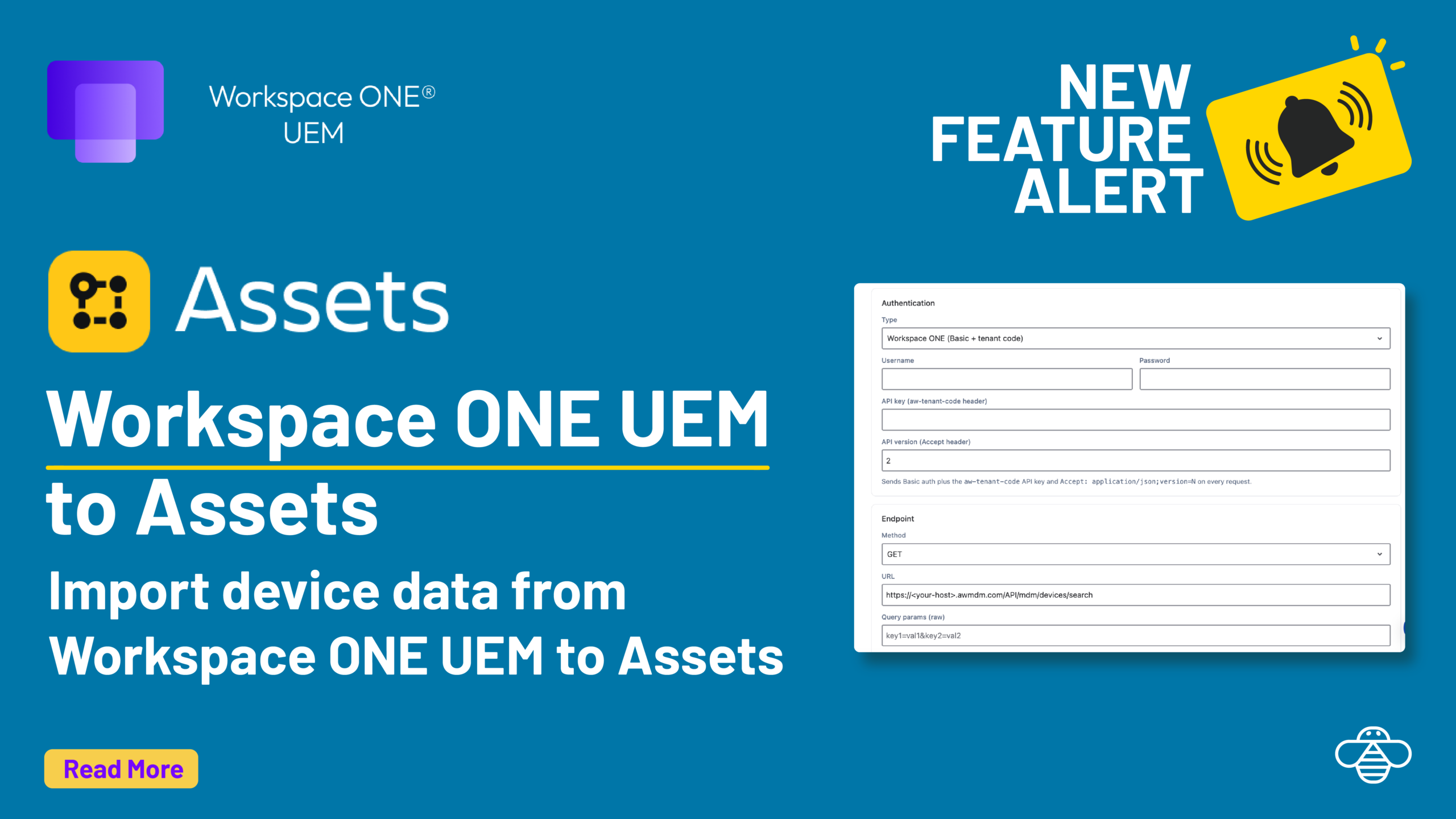

This article walks through how to connect to Workspace ONE UEM API and how to configure OnLink to pull device data in and map it to Assets attributes.
Workspace ONE UEM exposes a full REST API that covers devices, apps, profiles, tags, and more. Omnissa maintains the official API reference, including a Postman collection, at:
API documentation: https://developer.omnissa.com/workspace-one-uem-apis/
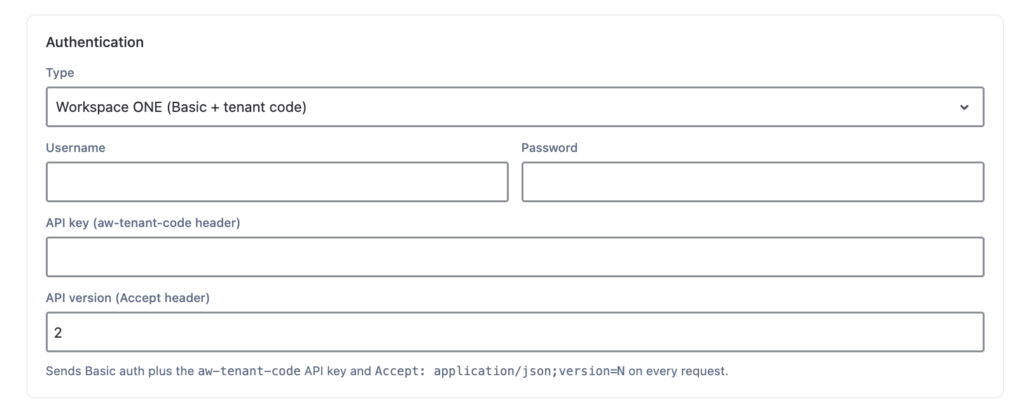
Before connecting any integration to Workspace ONE UEM, gather the following credentials from the UEM admin console:
as2060), also found on the same API settings page.2), required by many Workspace ONE UEM endpoints.Keep these five values ready to configure the data source in OnLink.
OnLink converts Workspace ONE UEM API responses directly into JSM Assets objects. The setup has four parts: connecting to the source, defining the API request, fetching sample data, and mapping fields to Assets attributes.
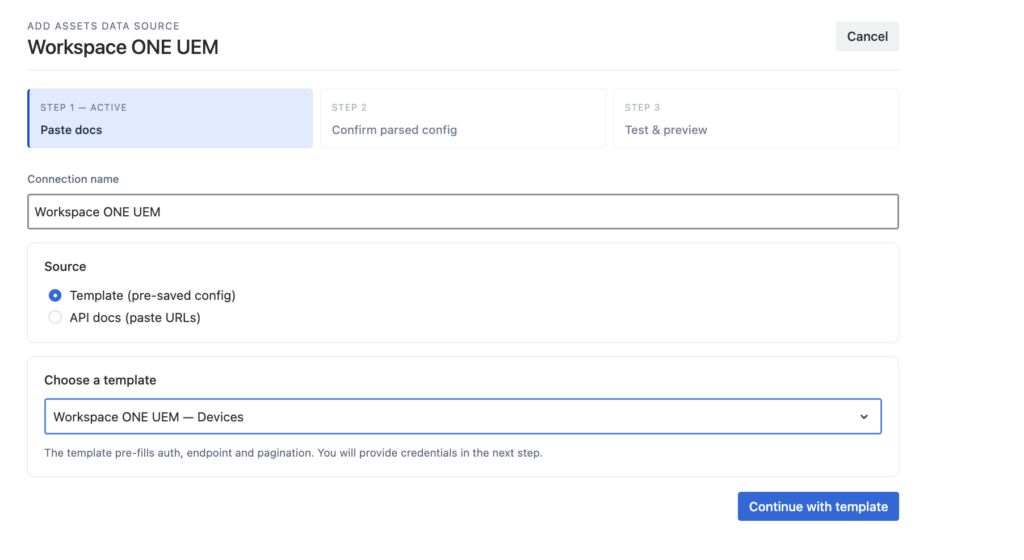
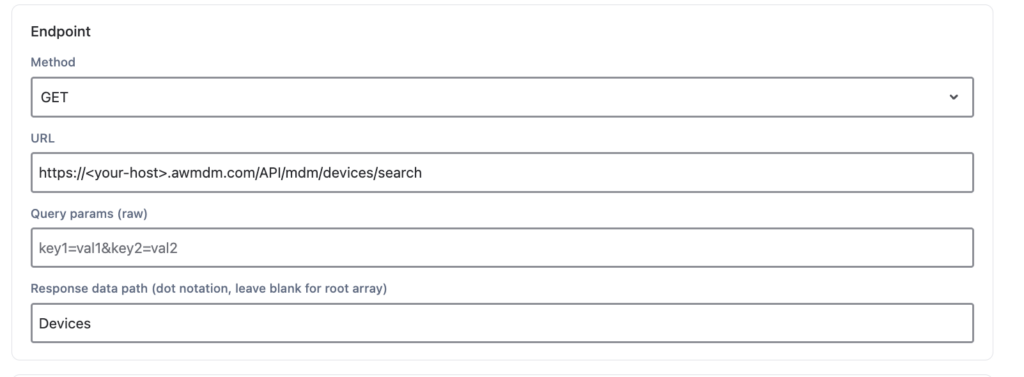
Once connected, configure the request that pulls the device collection. Set Method to GET, replace the placeholder host in the URL with your Workspace ONE UEM host, and set the Response data path to Devices (or the collection name returned by the endpoint you selected). Leave other settings at their defaults unless the endpoint requires additional query parameters.
With sample data in hand, map Workspace ONE UEM fields to JSM Assets attributes using key: and map: statements:
| Workspace ONE field | OnLink mapping | Asset field |
|---|---|---|
DeviceId | key:deviceid=Device ID | Device ID |
Udid | map:udid=UDID | UDID |
Uuid | map:uuid=UUID | UUID |
SerialNumber | map:serialnumber=Serial Number | Serial Number |
MacAddress | map:macaddress=MAC Address | MAC Address |
ImeiNumber | map:imeinumber=IMEI Number | IMEI Number |
AssetNumber | map:assetnumber=Asset Number | Asset Number |
DeviceFriendlyName | map:devicefriendlyname=Device Friendly Name | Device Friendly Name |
Model | map:model=Model | Model |
ModelId | map:modelid=Model ID | Model ID |
Platform | map:platform=Platform | Platform |
OperatingSystem | map:operatingsystem=Operating System | Operating System |
Full step-by-step configuration, including the sample device JSON response, is documented here:
Get endpoint API request guide: https://onwardb.atlassian.net/wiki/spaces/ONLINK/pages/1057849345/Workspace+ONE+UEM+to+JSM+Assets
Ready to see it in action? Install OnLink from the Atlassian Marketplace and configure the Workspace ONE UEM – Devices template today, or reach out to the OnLink team for a walkthrough tailored to your Assets schema.
1. Do I need a dedicated Workspace ONE UEM API account to use OnLink? It’s not strictly required — you can use an existing console admin account — but Omnissa recommends creating a dedicated REST API admin role scoped to the endpoints OnLink needs. This limits the permissions granted to the integration and makes credential rotation easier.
2. Where do I find my aw-tenant-code and API host? In the Workspace ONE UEM console, go to Groups and Settings > All Settings > System > Advanced > API > REST API while in the Customer OG or below. The aw-tenant-code is your API key, and the hostname is the portion of your REST API URL (for example, as2060).
3. Will OnLink create duplicate devices if I run the import multiple times? No, as long as your key: mapping references a stable, unique field — typically DeviceId. OnLink uses that key to match existing Assets objects and update them rather than creating new ones on each sync.
4. Can I import more than device inventory fields, like compliance status or assigned user? Yes. The sample Workspace ONE UEM response includes fields such as compliance status, enrollment status, and user assignment (UserId, UserName, UserEmailAddress). Add a map: entry for each additional field, noting that some are nested objects requiring the correct field path.
5. Does this integration work for Workspace ONE UEM resources other than devices? Yes. The same connect-map-import workflow applies to other Workspace ONE UEM endpoints — apps, profiles, tags, and more — by changing the API endpoint, response data path, and target Assets object type.
6. How often does OnLink sync data from Workspace ONE UEM to JSM Assets? Sync frequency is configurable as part of the Assets import job. You can run it on a schedule (for example, daily or hourly) or trigger it manually, depending on how current you need your Assets records to be.